So now we get onto the actual nitty gritty of problem solving itself. In order to explain the idea's behind problem solving I will go through one or two real examples. By seeing the process and methodology involved you should be able to apply the theory to other problems as they arise.
Lets start simple and work our way up.
One of the simplest problems I am asked about is the mouse not working or being very difficult to use.
Always start with the simplest possible idea's, the mouse seems sticky and is difficult to use. First thing to do is look at the mouse itself. When you examine the mouse turn it over and you will see a ball sticking out slightly from a plate like disk. On this disk you will notice two marks which show a rotating symbol. Simply use your fingers to turn this disk in the direction shown. Lift the disk off and the ball is visible. Take the ball out and put it one side. Now you can see inside the mouse itself. You will notice two small rollers and one small disk or wheel. The chances are there will be fluff or dirt around these rollers. All you need to do now is to clean the rollers and the wheel. Use a small screw driver or something similar to gently scratch the fluff off of the rollers. Please notice I say "gently" clean the rollers. The mouse is an accurate device and the components are small and can be broken. So always take care not to bend or break the rollers and keep the ball clean also.
What happens inside the mouse is that as we move it the ball inside rolls over the rollers and the turns of the rollers tell the computer where the movement for the cursor should be. If the rollers are covered in fluff or dirt they won't rotate smoothly and so the effect on the mouse is that it appears jerky or to stick etc. once the rollers are cleaned the mouse should work smoothly again.
If the mouse stops working all together then something more needs to be done. The first thing to do in this case is to start simply again. Check to see if the lead is still plugged into the computer tightly and hasn't been pulled out. If the lead is still in, then is it possible to try another mouse on the computer. If the new mouse works then can you try the faulty mouse on another computer? If the faulty mouse works fine on the other computer it means that we have a conflict on the original computer and we can try to fix the problem by using the driver settings etc.
Driver conflicts are sorted out by using the control panel in windows. We can go to the control panel by using the steps shown earlier in this booklet.
When we look at the list of devices we should see the mouse listed and possibly an exclamation mark beside it to show a problem. Next thing would be to click on the word showing mouse and press delete. You should be asked if you are sure you want to remove the device. Click ok. Shut down windows and then after a few seconds re-start the computer. Hopefully windows will find the mouse and install it properly. This should fix the problem.
One thing to mention on this scenario is that if your mouse doesn't work you will need to navigate around the computer using the keyboard. For example to click the start button without using the mouse you should press the windows key on your keyboard. Then use the curser keys to move up or around the menus. When you want to select the item you simply press enter on your keyboard.
Another very common problem is that the computer seems to freeze completely and there is nothing you can do except wait. This is more often than not caused by lack of memory. The thing to do is to wait a little while to see if the computer responds again. If after a couple of minutes the computer is still frozen then we have to stop what ever is causing the problem.
The way to do this is as follows -
1. press and hold the following three keys for a few seconds
2. ctrl + alt + delete
After a few seconds a window should appear named task manager. You should see a window showing the applications (programmes) which are running.
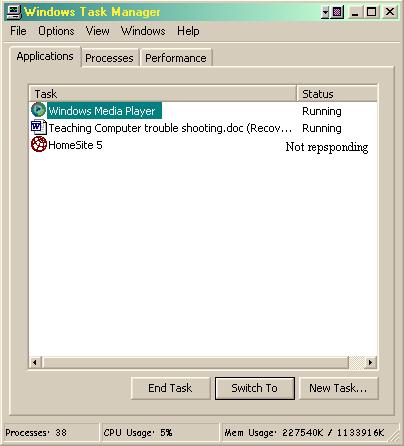
One of the applications might have a note beside it saying "not responding." If you see this message this is the programme which is causing the fault. At the bottom of the window you should see a button saying end task. So we need to click once on the offending programme and then click end task, another window will appear and you must click the end task button again.
One last problem which comes up time and again. Internet connection problems. So many times the dial up connection doesn't seem to work and it isn't possible to get on the internet. This is a tough one as so many things can effect the connection.
Again its important to start as simply as possible. Sounds silly but is the modem cable still plugged into the computer and the wall socket? If that's ok can you hear the modem trying to dial? If not perhaps you are getting an error message stating no dial tone. In this case unplug the modem lead from the phone socket and plug in a phone. Do you get a dial tone using the phone? If no then it's the phone line not the computer. If you do get a tone and you can hear the modem dialling it is more than likely its one of two things. Sometimes when we speak on the phone we say "this is a bad line today" its all crackly or quiet etc. well believe it or not a crackling noise on the line can and does interrupt the noises the computer uses to speak to the other computer the other end of the line. The effect of this is kind of like two people speaking in different languages, neither understands the other so they hang up. The thing to do is leave it for a few minutes and try again. I have on occasions had to dial in 5 to 10 times before I got a proper connection. I don't adjust anything I just try later.
If you cant hear a noise when the modem tries to dial then get another phone on another extension. When the computer tries to dial out listen on the phone extension and see if you can hear a noise. You should hear a screeching noise like an old fax machine. If you hear nothing then go through the basic steps outlined earlier. Check the leads, then move onto the control panel. When you see the modem listed use the right mouse button to click it. Select properties and somewhere there you should find a tab or button which says diagnostics or trouble shooting. By clicking the diagnostics button or the button saying more info. It is possible to get the modem to check itself. When it is finished it will tell you if its working ok or not. If there is a problem try deleting the modem from the list and going through the steps before.
"WARNING"
Don't delete anything from the list until you are sure you have the proper disks which came with your computer. If windows doesn't have the right driver for the modem for example you will need the setup disk to re-install it. This is less of a problem if you are using windows XP but still something to bear in mind.